
Axiom, Terminal and GMGN
Supported platform hosts include axiom.trade, trade.padre.gg, terminal.pump.fun and gmgn.ai, with the subdomains declared by the package. Platform support does not mean every chain is available on every site. Check the chain and token on the current page. The latest live acceptance trades were on Solana.
Find the controls
The header’s CKY button opens the launcher. Paper Trading opens the compact trading panel; Wallet & Balance and Dashboard lead to your practice records. Settings contains language, signal, chart and panel preferences. Use the panel’s own close button to hide it.
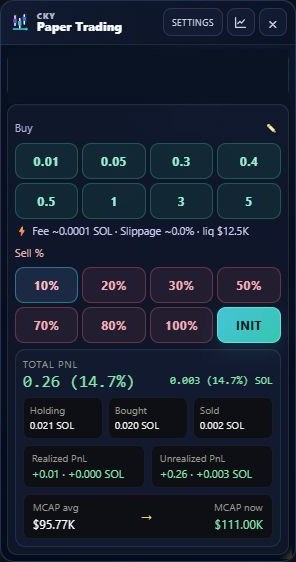
The account row shows the tier and simulated balance. BUY presets choose the amount of base currency; SELL buttons choose the percentage of the remaining paper position. The pencil edits the displayed BUY presets.
Quick-buy from the feed
Use the CKY quick-buy badge on a supported feed card. It captures the current coin identity and displayed MCAP at the click, opens the coin and continues the paper entry when account and market context are ready. The native platform BUY control still belongs to the platform.
If a reliable token identity or quote is missing, stop and inspect the page rather than repeatedly clicking. The recorded entry is the captured quote, not a later candle high or the next price you see.
Chart markers and AVG lines
CKY’s BUY/SELL markers show paper operations; average lines describe the recorded paper position. Enable the corresponding marker and average-line preferences in Settings. Reopening a coin restores its recorded context when a matching chart integration is available.
Changing timeframe groups operations into different candles. Zoom, price/MCAP mode and platform rendering affect their visual placement. A missing overlay alone does not prove that a trade was lost: inspect Dashboard → Trades first.
AI CKY
Eligible accounts can toggle AI CKY from the launcher. When enabled, its HUD appears on supported coin pages with BUY/SELL context and KPIs; clicking it opens the WHY explanation panel. The HUD is hidden on the feed itself. Read it as an analysis aid, not a guaranteed outcome or automatic order. Availability follows the existing Elite and feature-access checks.
Try AI CKY on Axiom
- Open an actively traded token on Axiom and verify its contract.
- Open CKY and enable AI CKY if your account has access.
- Read the HUD on the token page, then click it to inspect WHY and its supporting KPIs.
- Return to the launcher to disable AI CKY when finished. Enabling it does not place an order.
This written walkthrough describes the existing controls; a recorded demonstration is not available yet.
Free and Elite
| Capability | Free | Elite |
|---|---|---|
| Core paper BUY, SELL and position management | Included | Included |
| Wallet, Dashboard, recorded PNL and Demon Finder | Included | Included |
| Live PrePump signal pills and called-coin highlights | Locked | Tier-gated |
| Elite learning content and AI CKY access | Access prompt where gated | Subject to existing account access |
The account tier comes from the existing service. A browser display or a third-party checkout does not independently prove entitlement. Private Trencher, AutoTrencher, Lab, Wallet X-Ray and owner-only experiments are not part of the member package.
PrePump highlights
For eligible Elite accounts, Signal Calls enables live signal pills; the duration setting controls their visible lifetime. Highlight PrePump calls adds your chosen colour to the matching coin card. Opacity and colour are configurable. Matching uses token identity, not just the ticker or image: copies may share both.
Highlights identify an existing call; they are not an automatic paper entry. If a coin is absent from the current feed, there is no visible card to highlight. Free milestone feeds outside the extension are a separate distribution product.
Settings that are easy to read
Choose the selected Enabled/Disabled control, then confirm its visible state. Most preferences save automatically; use Apply language for the language choice. Language options include Auto, English, Italian, German, French and Spanish. Feature availability follows the account tier, even when an explanatory control is visible.